Thursday, 14 November 2019

Add a custom Flyout menu with buttons and identify which button is clicked...

Requirement:

Add a custom Flyout menu with buttons and identify which button is clicked. 

Solution:

Step 1

Setup a custom solution and add your entity (just add metadata nothing else)
 
Step 2
 
Create a java script web resource with the following code:

if (typeof (HIMBAP) == "undefined") {  
    var HIMBAP = { __namespace: true };  
}  
   
   
HIMBAP.AccountRibbonLibrary =  
    {  
       IdentifyFlyoutClick: function (commandProperties)  
       {  
          if (commandProperties.SourceControlId.includes("Test1.Button")) {  
                alert("Test 1 Clicked");  
            }  
            else if (commandProperties.SourceControlId.includes("Test2.Button"))  
             {  
               alert("Test 2 Clicked");  
             }  
       }  
    };  

In the above code, I am using CommandProperties, and we will be passing this parameter from the Flyout button command and it will help us to identify which flyout button is selected, it provides these properties,
  • SourceControlId: The Id value of the Ribbon control that initiated the event.
  • CommandValueId: A string that is sent with the command event when a button is clicked.
  • MenuItemId: A reference from a control to the Id of a menu item.
I am checking if the button Id contains specific text (Note: We need to include this in our button Ids)

Step 3
 
Open Ribbon Workbench solution and select your custom solution which includes your entity and web resource, we are using Account entity for the demo.

Step 4
 
Drag the Flyout button and drop it on the Form area.
 
 
Step 5
 
Click on + under Command to add a new command, change command Id accordingly and add a Custom JavaScript action

 
Step 6
 
Select your web resource, provide a function name. Click on the Add Parameter button and select Crm Parameter.


Step 7
 
Select CommandProperties from the available parameter list
 
Step 8
 
Now Drag Menu Selection under the flyout (above the line visible in the flyout button)
 
 
Step 9
 
Add Buttons under Menu Selection (I have added two buttons).

Step 10
 
Setup button properties like below (Use command we created in an earlier step).
 
 
Make sure you are adding button Ids based on your check, for example, I have modified the button Id to include the text I am validating in my web resource.
 
Now publish your changes and you should be able to see flyout like below and when clicked you should see a message based on the selection.
 

Friday, 18 October 2019

How to retrieve Attribute Display Name in Dynamics CRM using C#

How to retrieve Attribute Display Name in Dynamics CRM using C#


To retrieve the Label name of attributes which can give you the label of attribute if you pass it the schema name of entity, schema name of attribute and Iorganisation service object.
Class to include: 
“using Microsoft.Xrm.Sdk.Messages;”


public static string RetrieveAttributeDisplayName(string EntitySchemaName, string AttributeSchemaName, IOrganizationService service)
        {

            RetrieveAttributeRequest retrieveAttributeRequest = new RetrieveAttributeRequest
            {
                EntityLogicalName = EntitySchemaName,
                LogicalName = AttributeSchemaName,
                RetrieveAsIfPublished = true
            };
            RetrieveAttributeResponse retrieveAttributeResponse = (RetrieveAttributeResponse)service.Execute(retrieveAttributeRequest);
            AttributeMetadata retrievedAttributeMetadata = (AttributeMetadata)retrieveAttributeResponse.AttributeMetadata;

            return retrievedAttributeMetadata.DisplayName.UserLocalizedLabel.Label;
        }


Wednesday, 2 October 2019

User does not have send-as privilege to send Emails in MSCRM

User does not have send-as privilege to send Emails


User need to check "Allow other Microsoft Dynamics 365 users to sent email on your behalf " option from user's personal option.


Personal settings  >> Email tab >> "Allow other Microsoft Dynamics 365 users to send email on your behalf "


Tuesday, 1 October 2019

Get OptionSet Text and Value using Javascript for CRM 2011/2013/2015/2016/D365

Get OptionSet Text and Value using Javascript


For MSCRM 2011/2013/2015/2016 & D365(Deprecated) -


//Get OptionSet Text
Xrm.Page.getAttribute("fieldSchemaName").getText();


//Get OptionSet Value
Xrm.Page.getAttribute("fieldSchemaName").getValue();


For D365 - 
As you probably know, the Xrm.Page command usage is slowly becoming obsolete.
The execution context is an optional parameter that can be passed to a JavaScript library function through an event handler. Use the Pass execution context as first parameter option in the Handler Properties dialog while specify the name of the function to pass the event execution context. 
The execution context is the first parameter passed to a function as below screenshot - 


Example -
function testFn(executionContext) {
var formContext = executionContext.getFormContext();
// Get OptionSet Text
formContext.getAttribute("fieldSchemaName").getText();
// Get OptionSet Value
formContext.getAttribute("fieldSchemaName").getValue();
}

Friday, 23 August 2019

Add Email Signature in Microsoft Dynamics CRM

Create a signature for your email or for a queue


Create an email signature
To edit a signature if you are not a system administrator:
  1. Click the Settings button Options button for Dynamics 365 for Customer Engagement apps in the upper-right corner of the screen.
  2. Click Options, and then click the Email Signatures tab.
    To edit a signature if you are a system administrator:
  3. Go to Settings > Templates.
  4. Choose Email Signatures.
    To create a new email signature:
  5. On the Actions toolbar, click New.
  6. On the Email Signature: New Email Signature page, enter the following values:
    • Owner: The user or team that owns this signature.
    • Language: If you have multiple language packages installed, select the language for the signature you're composing.
    • Title: The title for this email signature.
  7. Click Set as Default to make this the default email signature.
  8. Click Save and Close.

Tuesday, 20 August 2019

Get Security Roles Name from MS CRM On-premise using SQL Query

How to get Security Roles Name from MS CRM 2011/2013/2015/2016/D365 On-Premise using SQL query

SELECT r.Name FROM Privilege p

JOIN RolePrivileges rp on p.PrivilegeId = rp.PrivilegeId

JOIN Role r on r.RoleId = rp.RoleId

where p.Name = 'prvMerge'


Adding the Social Pane to Custom Entity Forms in Microsoft D365

Adding the Social Pane to Custom Entity Forms in Microsoft D365 Online


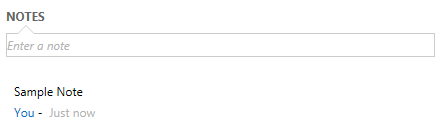
The Social Pane in Microsoft Dynamics CRM enables users to work with Posts, Activities and Notes directly from the form of an entity. In this blog I will describe the steps for adding the Social Pane to a custom entity form.


Step – 1 Customise the Entity

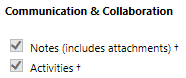
To record Activities and Notes against an entity either or both the Activities and Notes options, under Communication & Collaboration when customising the entity, must be selected. 


With the Activities option enabled users may access, schedule and complete Activities for the entity from the Microsoft Dynamics CRM Activities, from the entity’s form Related Records area and from the Social Pane if present on the form.


Step 2 – Refresh Post Configurations


Step 3 – Configure Post Configurations

To record Posts against an entity, using Activity Feeds, you will need to navigate to SETTINGSPost Configurations and ensure that the Post Configuration entry for the entity is activated and the Wall Enabled option is selected.


There is no need to publish changes to the entity. This is only required for upgraded forms where a What’s Newtab is added to the form instead of a Social Pane. Selecting or unselecting the Wall Enabled option will cause the POSTS tab to be displayed or not displayed on the Social Pane for the entity.


Step 4 – Customise the Form


The Social Pane cannot be added to a form that has been upgraded from Microsoft Dynamics CRM. You will need to create a new form. By default the new form will usually be a copy of the upgraded form, so creating a new form does not require re-customisation, however you should check and test your customisations; especially with respect to programming that may refer to the form by name.


If you add the Social Pane to the upgraded form only the NOTES tab will be displayed regardless of whether or not the Default tab for the Social Pane is set to Activities, Posts or Notes.


If you add the Social Pane to the new form then the POSTS, ACTIVITIES and NOTES tabs will be displayed.


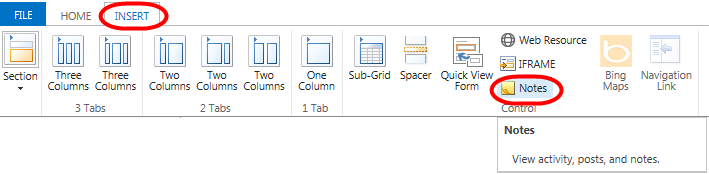
If required, add the Social Pane to the new form for the entity by adding or selecting a Section and then select INSERT, Notes. If the Notes control is disabled it is most likely because it has already been added.

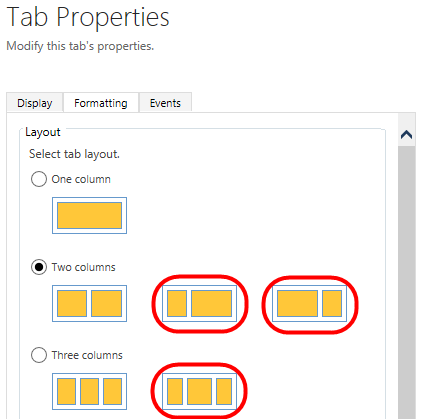
For Tabs that contain multiple columns I recommend using one of the tab layout formats that contain a wide column, such as those highlighted in the following images, and then add the Social Pane to a section within the wide column.


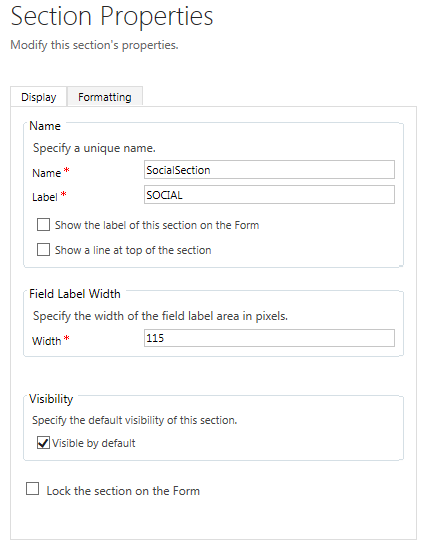
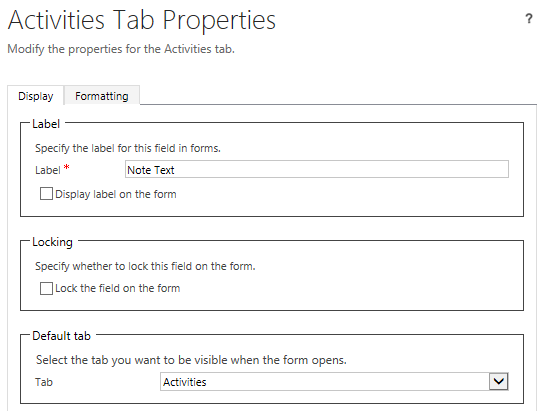
The following Section properties are recommended. There is no need to display the Label.


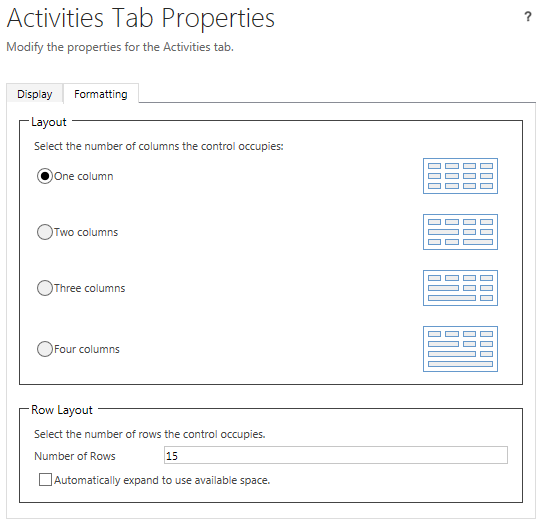
The following Notes properties are recommended, however you may choose to select which tab is selected by default. There is no need to display the Label. Leaving the Number of Rows, under Row Layout, set to 15 is recommended for optimally displaying the Social Pane on the screen.


If you select the Activities and/or Notes options when creating a new entity in Microsoft Dynamics CRM  then the Social Pane will be added by default to the Information form for the new entity.

Monday, 17 June 2019

Report Server cannot load the TERADATA / SQLPDW extension

Report Server cannot load the TERADATA / SQLPDW extension

Problem

In the Windows Application Log of a Windows 2008 server that hosts SQL server 2008 R2 reporting service, the following Error messages appear daily:
“Report Server (MSSQLSERVER) cannot load the SQLPDW extension.”
“Report Server (MSSQLSERVER) cannot load the TERADATA extension.”

Cause

I’ve found the explanation in the SSRS forums on MSDN (link can be found here)
“This error occurs because the Teradata extension is registered in the Reporting Services configuration file by default, but the Teradata assemblies are not shipped with SQL Server 2008 or as part of the .NET Framework. If the error message does not bother you, you can ignore the error when it is logged.
However, if you want to avoid this error, do one of the following:
  • Open the Reporting Services configuration file located in folder C:\Program Files\Microsoft SQL Server\MSRS10_50.MSSQLSERVER\Reporting Services\ReportServer, remove or comment out the Teradata extension. Do this only if you do not require functionality that the Teradata extension provides.
  • Install the .NET Data Provider for Teradata. Do this only if you require functionality that the Teradata extension provides. You can obtain the provider from the Teradata Web site. Reporting Services requires that the provider be version 12 or later.”

Solution

With SQL server configuration Manager or with Reporting Services Configuration manager, stop the reporting service.
Edit the file As suggested in the above article, edit the file rsreportserver.config in
Search for SQLPDW, comment out 2 entries:


Search for TERADATA, comment out 3 entries:

Start the reporting service.

Tuesday, 26 March 2019

Email Recipients add on Email entity based on From recipients

function removeReceiverAtTo() {
    var parentActivityID = null;
    var Direction = null;
    var subject = null;
    var status = null;
    var isDirty = Xrm.Page.data.entity.getIsDirty();

    if (Xrm.Page.getAttribute("statuscode").getValue() != null || Xrm.Page.getAttribute("statuscode").getValue() != "") {

        status = Xrm.Page.getAttribute("statuscode").getValue();
    }
    if (Xrm.Page.getAttribute("directioncode").getValue() != null || Xrm.Page.getAttribute("directioncode").getValue() != "") {

        Direction = Xrm.Page.getAttribute("directioncode").getValue();
    }
    if (isDirty) {
        if (status == 1 && Direction == true) {
            if (Xrm.Page.getAttribute("tec_action").getValue() != null || Xrm.Page.getAttribute("tec_action").getValue() != "") {
                // Status - 1  - Draft
                getDomainValue();
                Xrm.Page.getAttribute("tec_action").setValue(null);
            }

        }
    }
    else {
        if (status == 1 && Direction == true) {
            if (Xrm.Page.getAttribute("tec_action").getValue() != null || Xrm.Page.getAttribute("tec_action").getValue() != "") {
                // Status - 1  - Draft
                getDomainValue();
                Xrm.Page.getAttribute("tec_action").setValue(null);
            }

        }
    }
}

function retrieveReqCallBack(EmailAddressFinal) {

    var hostName = EmailAddressFinal.split(";");
    var Domain = false;
    var NonDomain = false;
    var hNLength = hostName.length - 1;
    while (hNLength >= 0) {
        var item = hostName[hNLength];
        if (item != null && item != "") {
            if (!item.includes("domain.in") || !item.includes("domain.net")) {
                Domain = false;
                NonDomain = true;
                break;
            }
        }
        hNLength = hNLength - 1;
    }
    CheckDomainorNonDomain(Domain, NonDomain);
}

function CheckDomainorNonDomain(Domain, nonDomain) {
    if ((Domain == false || Domain == "false") && (nonDomain == true || nonDomain == "true")) {

        //var unresolvedemail = "email_1_nonDomain@nondomain.com";

        //var obj = new Object(); //create the unresolved object

        //obj.name = unresolvedemail;

        //obj.category = 3;

        //obj.data = unresolvedemail;

        //obj.type = "9206";

        var queueGuid = "394B4273-BD7A-E811-80C5-00155D668D41";
        var queueName = "Email_nonDomain";
        var entityName = "queue";

        var lookup = new Array();
        lookup[0] = new Object();
        lookup[0].id = queueGuid;
        lookup[0].name = queueName;
        lookup[0].entityType = entityName;

        var fromField = Xrm.Page.getAttribute("from");

        var fromValue = fromField.getValue();

        if (fromValue != null) {

            Xrm.Page.getAttribute("from").setValue(null);
            Xrm.Page.getAttribute("from").setValue(lookup);
            //fromField.setValue([obj]); //if 'from' field is null, just override it
            // Xrm.Page.data.entity.save();

        }

    }
    else {

        if (Xrm.Page.data.entity.attributes.get("regardingobjectid").getValue() != null) {
            var regardingField = Xrm.Page.getAttribute("regardingobjectid").getValue();

            var lookupItem = new Object();

            var RegardingId = regardingField[0].id;

            var RegardingName = regardingField[0].name;

            var EntityName = regardingField[0].entityType;

            if (EntityName == "Lead" || EntityName == "lead") {

                //var unresolvedemail = "emailLead_Dmain@tectura.com";

                //var obj = new Object(); //create the unresolved object

                //obj.name = unresolvedemail;

                //obj.category = 3;

                //obj.data = unresolvedemail;

                //obj.type = "9206";

                var queueGuid = "8F6F5A5E-C17A-E811-80C5-00155D668D41";
                var queueName = "Email_Lead_Domain";
                var entityName = "queue";

                var lookup = new Array();
                lookup[0] = new Object();
                lookup[0].id = queueGuid;
                lookup[0].name = queueName;
                lookup[0].entityType = entityName;

                var fromField = Xrm.Page.getAttribute("from");

                var fromValue = fromField.getValue();

                if (fromValue != null) {

                    Xrm.Page.getAttribute("from").setValue(null);
                    Xrm.Page.getAttribute("from").setValue(lookup);
                    // fromField.setValue([obj]); //if 'from' field is null, just override it

                }
            }
            else if (EntityName == "Incident" || EntityName == "incident") {
                //var unresolvedemail = "emailIncident_Domain@nonDomain.com";

                //var obj = new Object(); //create the unresolved object

                //obj.name = unresolvedemail;

                //obj.category = 3;

                //obj.data = unresolvedemail;

                //obj.type = "9206";

                var queueGuid = "CEFB6ACF-C07A-E811-80C5-00155D668D41";
                var queueName = "Email_Case_Domain";
                var entityName = "queue";

                var lookup = new Array();
                lookup[0] = new Object();
                lookup[0].id = queueGuid;
                lookup[0].name = queueName;
                lookup[0].entityType = entityName;

                var fromField = Xrm.Page.getAttribute("from");

                var fromValue = fromField.getValue();

                if (fromValue != null) {

                    Xrm.Page.getAttribute("from").setValue(null);
                    Xrm.Page.getAttribute("from").setValue(lookup);
                    //fromField.setValue([obj]); //if 'from' field is null, just override it

                }
            }
        }
    }
    //Xrm.Page.data.entity.save();
}

function getDomainValue() {
    //For To Party
    var serverUrl = "http://" + window.location.host + "/" + Xrm.Page.context.getOrgUniqueName();
    var tofield = Xrm.Page.getAttribute("to").getValue();
    var fromfield = Xrm.Page.getAttribute("from").getValue();

    if (tofield != null) {
        var lookupData = new Array();
        var i = 0;
        var lens = tofield.length;
        if (lens >= 1) {
            //Xrm.Page.getAttribute("to").setValue(null);
            var len = tofield.length - 1;
            var top = tofield[len];
            var EmailAddressFinal = "";
            var EmailAddress = "";
            while (len >= 0) {
                if (tofield[len].name != fromfield[0].name) {

                    var lookupItem = new Object();
                    lookupItem.id = tofield[len].id;
                    lookupItem.name = tofield[len].name;
                    lookupItem.type = tofield[len].type;
                    lookupData[len] = lookupItem;


                    if (tofield[len].entityType == "contact") {

                        var oDataPath = serverUrl + "/XRMServices/2011/OrganizationData.svc";
                        var retrieveReq = new XMLHttpRequest();
                        var Odata = oDataPath + "/ContactSet?$select=EMailAddress1&$filter=ContactId eq guid'" + lookupItem.id + "'";
                        retrieveReq.open("GET", Odata, false);
                        retrieveReq.setRequestHeader("Accept", "application/json");
                        retrieveReq.setRequestHeader("Content-Type", "application/json; charset=utf-8");
                        // retrieveReq.onreadystatechange = function () { retrieveReqCallBack(this); };
                        retrieveReq.send();
                        if (retrieveReq.readyState == 4 /* complete */) {
                            var retrieved = this.parent.JSON.parse(retrieveReq.responseText).d;
                            EmailAddress = retrieved.results[0].EMailAddress1;
                            EmailAddressFinal = EmailAddressFinal.concat(EmailAddress + ";");

                            len = len - 1;
                        }
                    }
                    else {

                        EmailAddress = lookupItem.name;
                        EmailAddressFinal = EmailAddressFinal.concat(EmailAddress + ";");

                        len = len - 1;
                    }

                }
                else {

                    len = len - 1;
                }
            }
            retrieveReqCallBack(EmailAddressFinal);
        }
    }
}